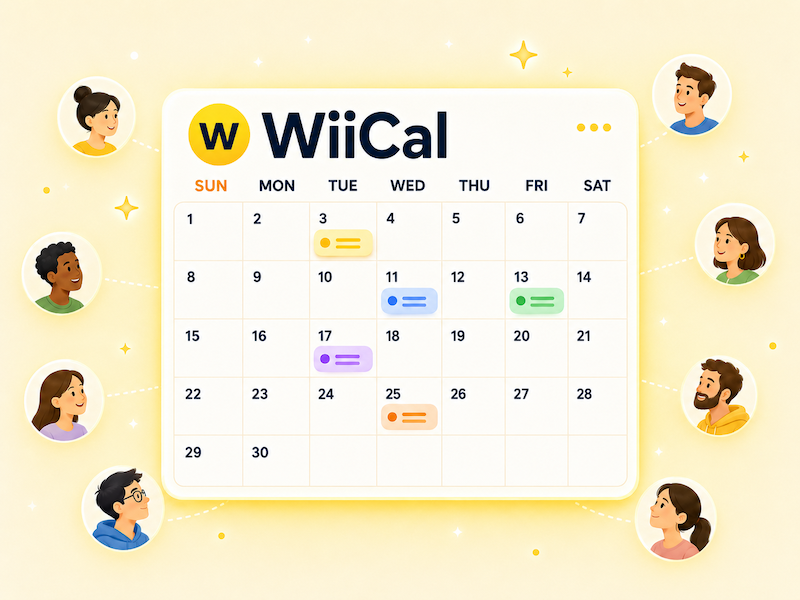
Calendar sharing helps you put events, team plans, family schedules, livestreams, deadlines, and important dates in one place. Instead of sending the same schedule again and again, you can share a calendar and give people a clear place to check the latest information.
This is especially useful when you have multiple dates, frequent updates, or many people asking about the same schedule. A shared calendar reduces repeated questions and makes it easier for your audience to know what is happening next.
What is calendar sharing?
Calendar sharing means making a calendar or event schedule available to other people. You can share a calendar with a public URL, invite specific people, send a single event link, or publish the schedule in another format such as text or an image.
The right method depends on who needs to see the schedule. A private team calendar needs different controls from a public event calendar for customers, fans, or community members.
Benefits of calendar sharing
The biggest benefit of calendar sharing is that it creates one place for people to check dates. When schedule information is spread across social posts, chats, emails, and images, people may not know which version is current.
When you share a calendar, people can view dates in order and return to the same place when they need an update. If a date changes or a new event is added, you update the calendar instead of explaining the schedule again.
- Give people one place to check the schedule
- Reduce repeated questions about dates and times
- Show multiple events in date order
- Make updates easier after publishing
- Share schedules through social profiles, chats, emails, or websites
Choose the right sharing method
There are several ways to share a calendar. Choosing the wrong method can make the schedule hard to access or expose information that should stay private.
Share with a URL
URL sharing works well for public events, community schedules, store hours, livestream calendars, fan activities, and other schedules that many people need to see. You can place the same link in a social profile, pinned post, chat, email, or website.
The advantage of URL sharing is simplicity. People can open the calendar without a complicated setup, and you can keep the same link even when the schedule changes.
Share with specific people
For family plans, internal team schedules, project calendars, or private meetings, use a sharing method that lets you control who can view the calendar. This is better when the schedule includes personal details, internal notes, or private links.
Share a single event
If you only need to share one meeting time, one deadline, or one event, a single event link may be clearer than sharing the full calendar. It keeps the recipient focused on the one item they need.
What to prepare before sharing
Before you share a calendar, make sure it includes the information people need to understand the schedule and take the next step.
- Calendar name
- Short calendar description
- Event titles
- Start and end dates
- Location or online URL
- Registration or detail page
- Notes for schedule changes
A clear calendar name matters. Instead of using a vague name like "Schedule", use a name that explains the audience and purpose, such as "Spring 2026 Event Calendar" or "Team Practice Schedule".
Tips for clear calendar sharing
A shared calendar should be easy to understand without extra explanation. Before sending the link, review it from the viewer's perspective.
- Avoid event titles that only use internal abbreviations
- Check dates, times, and time zones
- Keep descriptions short and link to full details
- Remove old drafts or private notes
- Check the calendar on a mobile screen
- Open the shared URL while logged out
The public view is what matters most. Even if the calendar looks correct in the editing screen, open the shared link separately to confirm what other people will actually see.
Start calendar sharing with Wiical
Wiical helps you create calendars, add events, and share them with a URL. It is useful for event schedules, fan activities, team plans, store updates, community calendars, and any schedule that people need to check more than once.
After creating a calendar in Wiical, you can add events and share the calendar URL. People can return to the same URL to see the latest schedule, while you can keep adding or editing events after publishing.
Place the shared URL where your audience already looks for updates: a social media profile, pinned post, group chat, email, or website. If your schedule is currently scattered across different messages and posts, turning it into a shared calendar is a simple way to make it easier to follow.
FAQ
What is the best way to share a calendar?
For public schedules, a URL is usually the simplest option. For private schedules, use a method that lets you control who can view the calendar.
Can I update a calendar after sharing it?
Yes. That is one of the main benefits of calendar sharing. You can update the calendar and keep using the same link.
Is posting a schedule on social media enough?
Social media is useful for announcements, but schedule details can get buried. A shared calendar gives people one stable place to check the latest dates.
Summary
Calendar sharing helps you organize multiple dates and make schedules easier for other people to follow. Use URL sharing for public schedules, restricted sharing for private groups, and single event sharing when only one item matters.
With Wiical, you can create a calendar, add events, and share the schedule with a URL. Start by gathering the dates people ask about most, then turn them into one calendar that is easy to find and keep updated.